
# Export Configuration (.fbrange2)
You can export all your ranges, trainings, and settings into a single .fbrange2 file. This file can later be imported into Freebetrange by you or anyone you share it with.
You can use this feature to backup your data, or to share your configuration with your students, friends or teammates.
The configuration export feature is available with the Pro plan and above.
To export your configuration, open the user menu and select Export configuration.
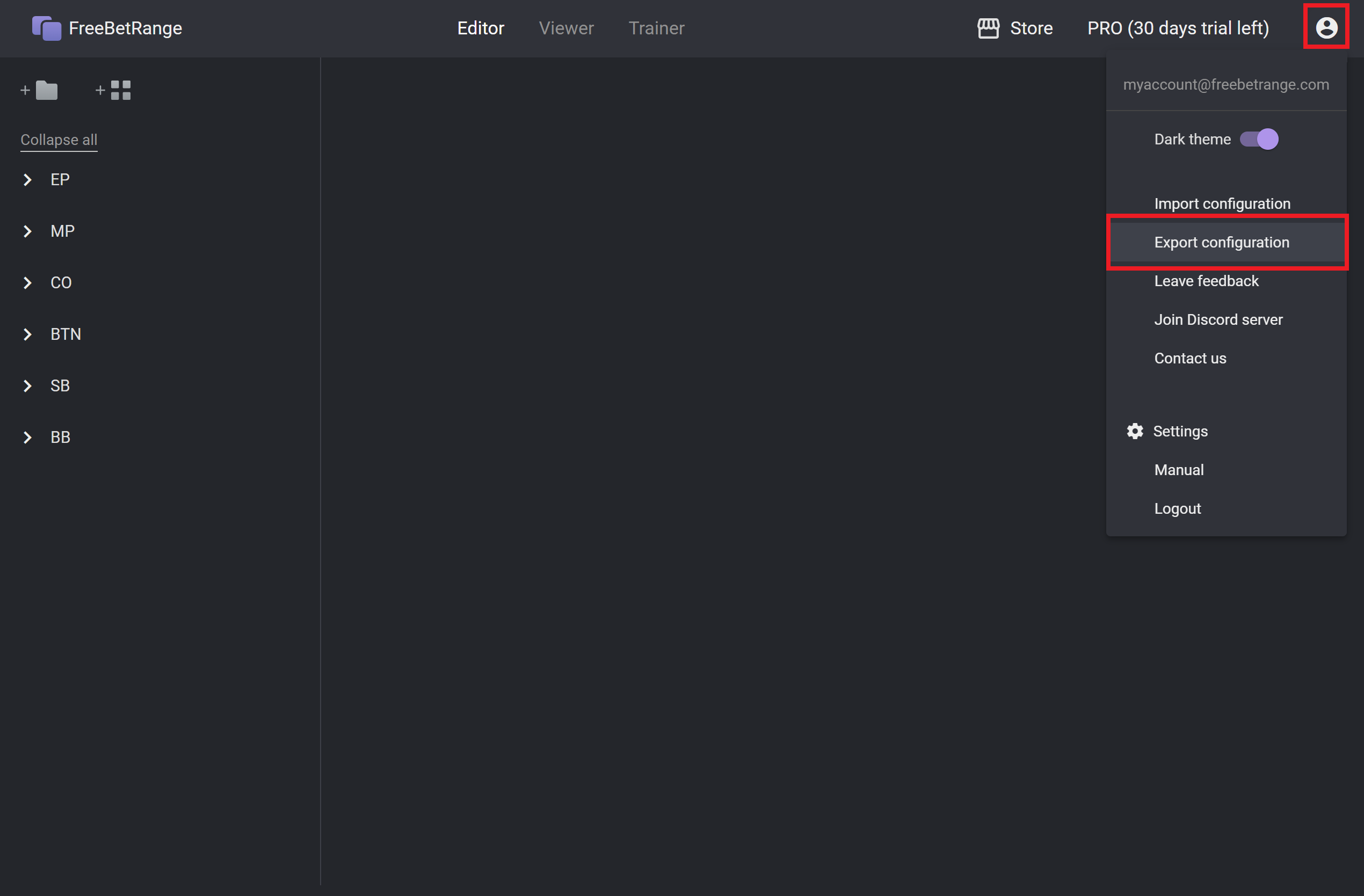
In the Export window, you can choose who will be able to import the file (anyone or specific users) and what exactly will be included — ranges, trainings, settings, or everything at once.
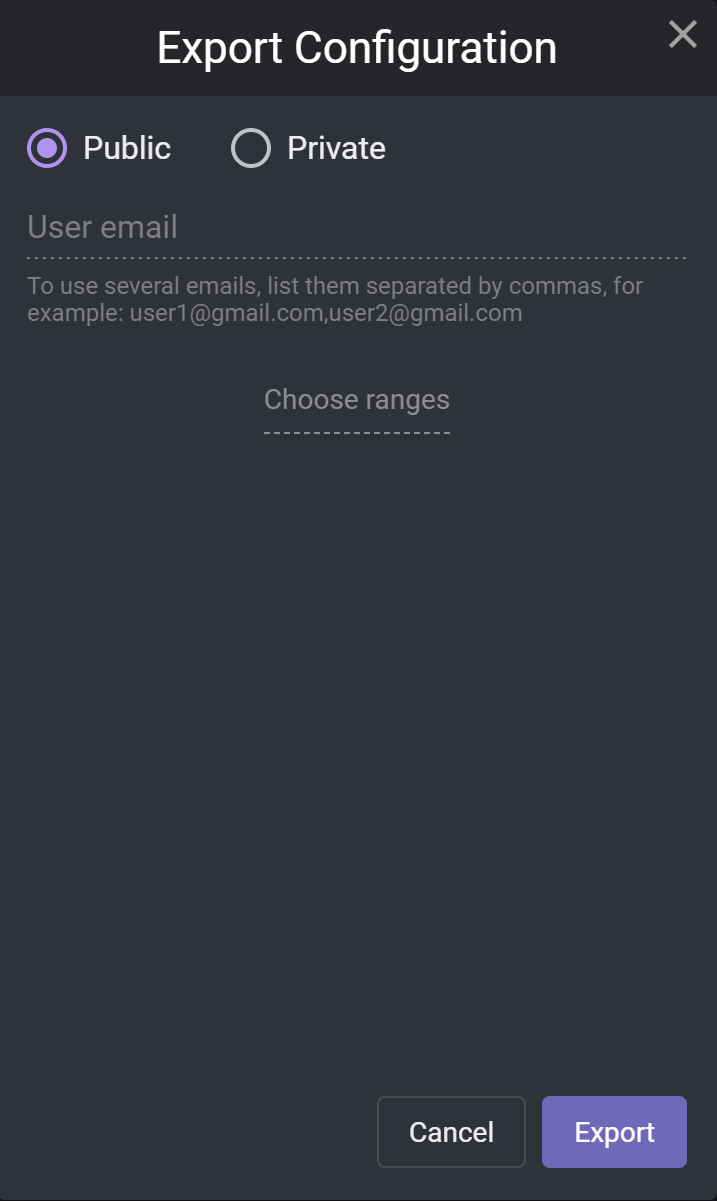
You can also select specific ranges or trainings instead of exporting everything. To do this, click Choose ranges or Choose trainings and pick only the items you want to include in the export.
Once all parameters are set, click Export. The .fbrange2 file will be downloaded to your computer (you may need to confirm the download in your browser).
To learn how to import a .fbrange2 file, see the Import Configuration guide.